Administrators can implement User Agent Policies to synchronize digital reservations with physical resource activity. By validating that a login event corresponds with an active booking, the system captures high-fidelity usage data. These policies also enable automated management of user behavior—such as early arrivals, late starts, or 'no-shows'—allowing facilities to maintain accountability through configurable penalty point distributions.
¶ Creating Policies
Creating a new policy:
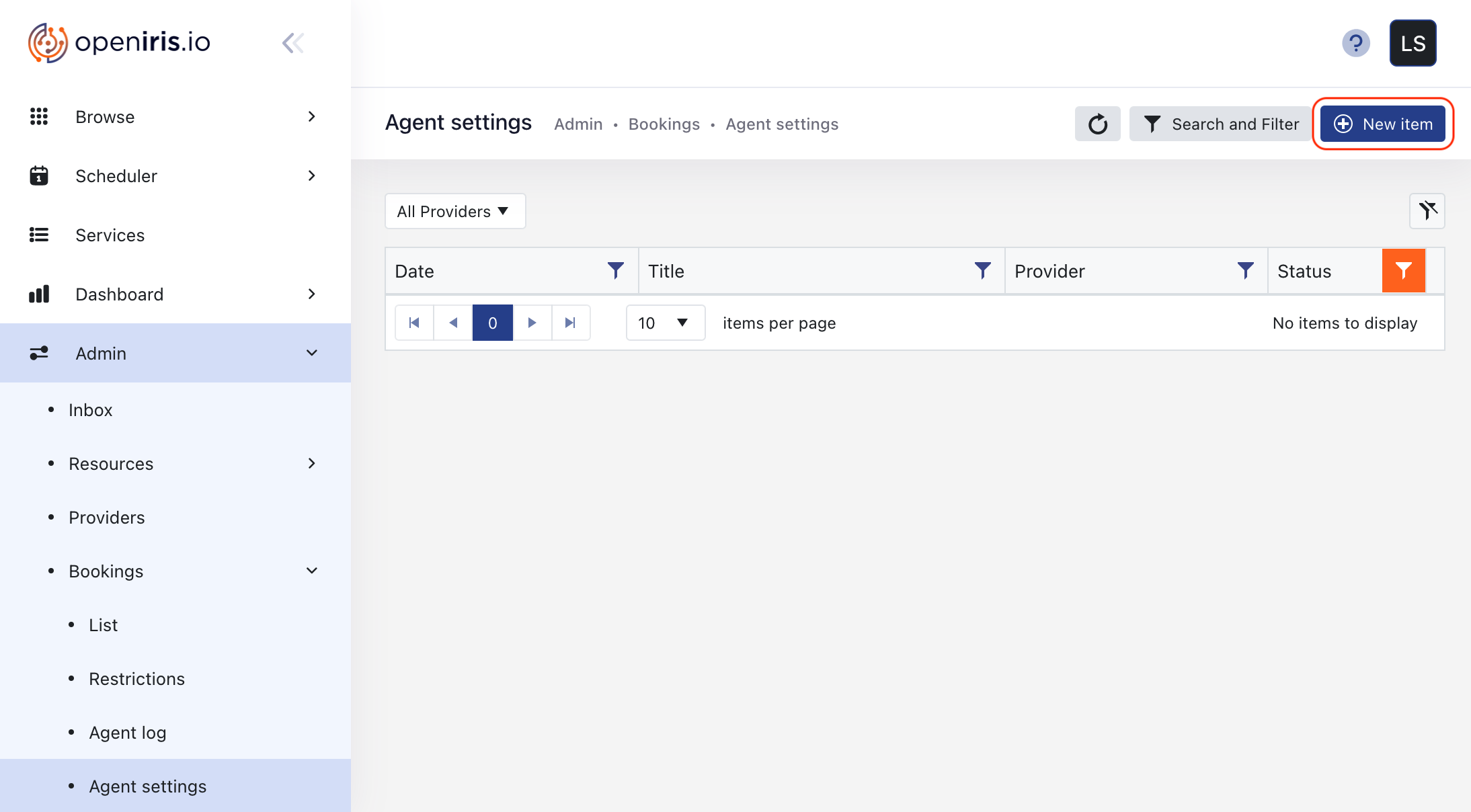
Agent settings can be created in Admin > Bookings > Agent settings > New item (button).
 |
|---|
After clicking the New item button, select the Provider, which hosts your Resources.
Then specify the Agent settings policy (description below), and make sure to press the Submit button after configuration.
Modifying an existing policy:
Existing Agent settings can be adjusted via Manage (gear icon) of a table entry. Ensure to press the Update button after modifying any of the tabs.
¶ Details (tab)
 |
|---|
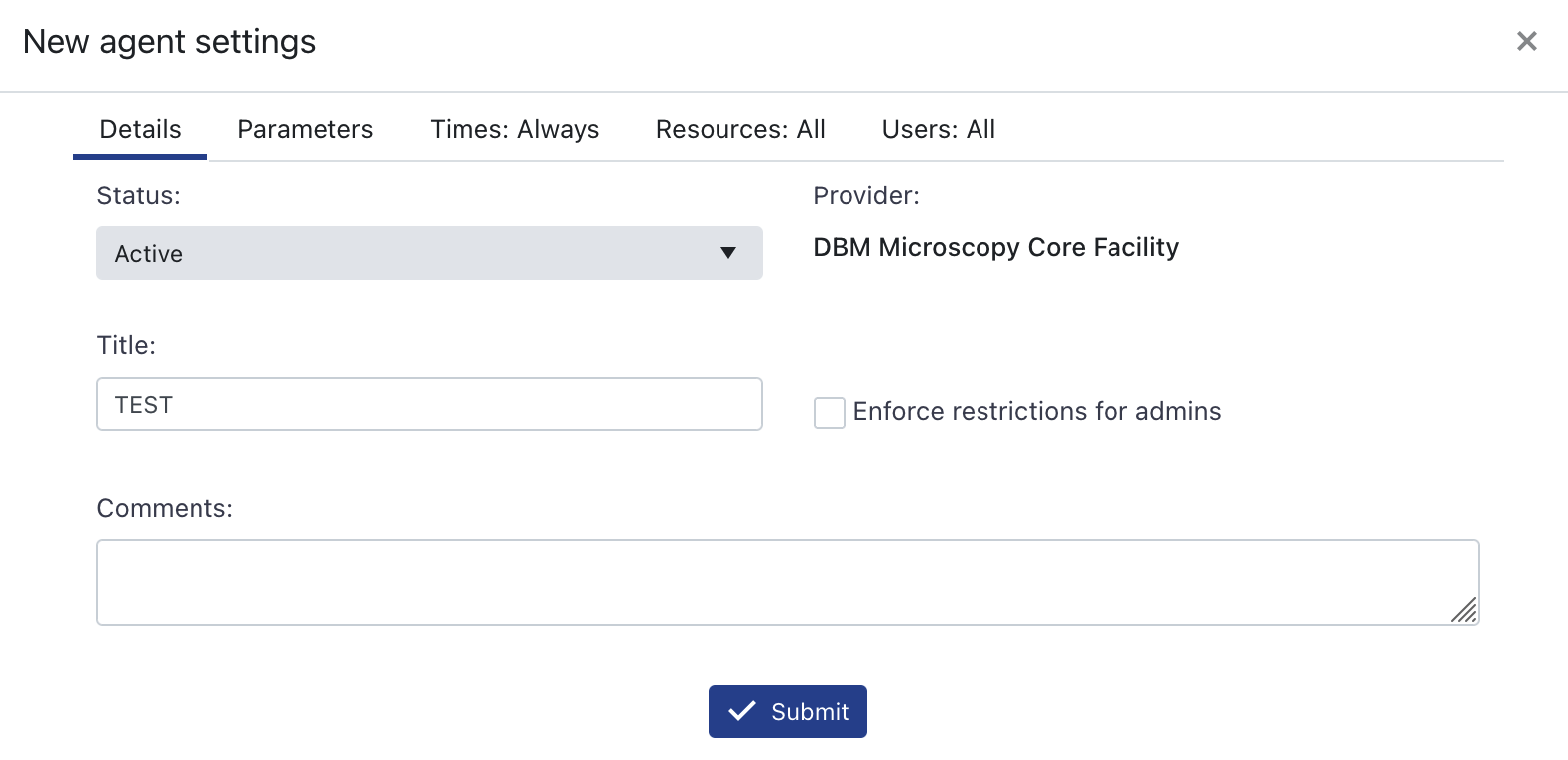
- Status
Options:ActiveorInactive
Controls whether the restrictions are applied. - Title
Name of the Agent settings entry. - Enforce restrictions for admins (checkbox)
To enforce the restrictions on resource admins.
¶ Parameters (tab)
 |
|---|
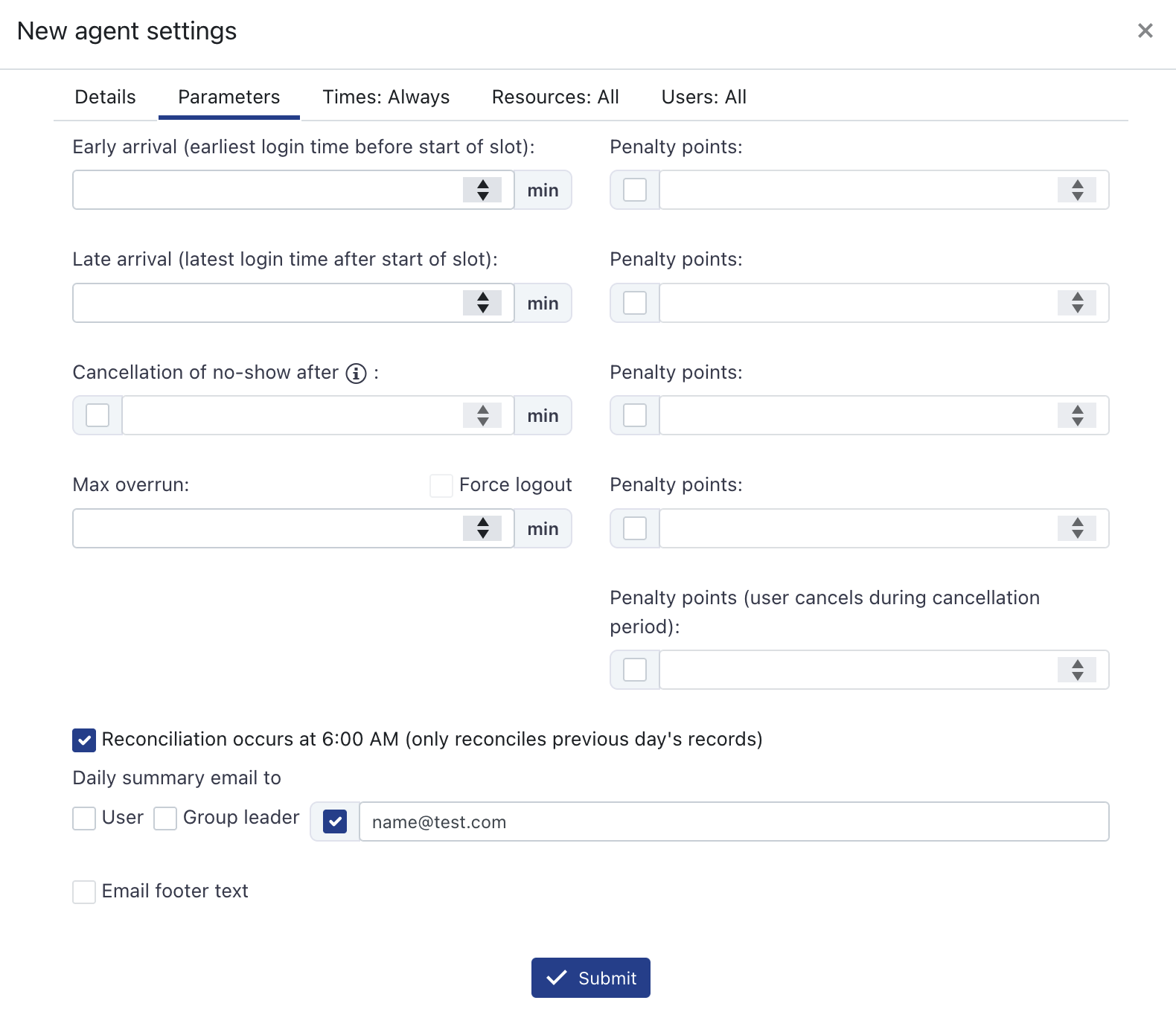
The agent will log "misbehaviors"-entries in Admin > Bookings > Agent log.
-
Early arrival
Specify the number of minutes a user may log in to the instrument before the booking start.- Penalty points
(Optional) Number of penalty points given to a user for early arrival (check the tick box).
- Penalty points
-
Late arrival
Specify the number of minutes a user may log in to the instrument after the booking start.- Penalty points
(Optional) Number of penalty points given to a user for late arrival (check the tick box).
- Penalty points
-
Cancellation of no-show after
If ticked: deletes the booking if no user login has happened after the specified number of minutes.
Note: The scan happens every 20 minutes, hence cancellations may be delayed.- Penalty points
(Optional) Number of penalty points given to a user for no show (check the tick box).
- Penalty points
-
Max overrun
Specify the number of minutes a user may stay at the instrument after the booking end.
Tick theForce logoutbox to log off the user from the instrument after the overrun time expires.- Penalty points
(Optional) Number of penalty points given to a user for overrunning the booked session (check the tick box).
- Penalty points
-
Penalty points (user cancels during cancellation period)
(Optional) Number of penalty points given to a user who cancels the booking during the cancellation period.
- Reconciliation (tick box)
-
Daily summary email to
Allows sending IRIS booking scan summaries of bookings that have met any of the parameters above to:- the User (of the booking)
- the Group leader to whom the user with the booking belongs
- or a custom email; e.g. a resource admin
-
Email footer text
Allows customizing the email.
¶ Times (tab)
Specify during which days and during which times the policy is in effect.
Default: Always
¶ Resources (tab)
Specify for which resources the policy is effective.
Default: All
Warning
Resources added here, which do not have the IRIS User Agent installed on the instrument, will still trigger the policies as no shows (and depending on theCancellation of no-show afterparameter the bookings will be deleted automatically).
¶ Users (tab)
Specify for which users the policy is effective.
Default: All
¶ Device Resource Settings
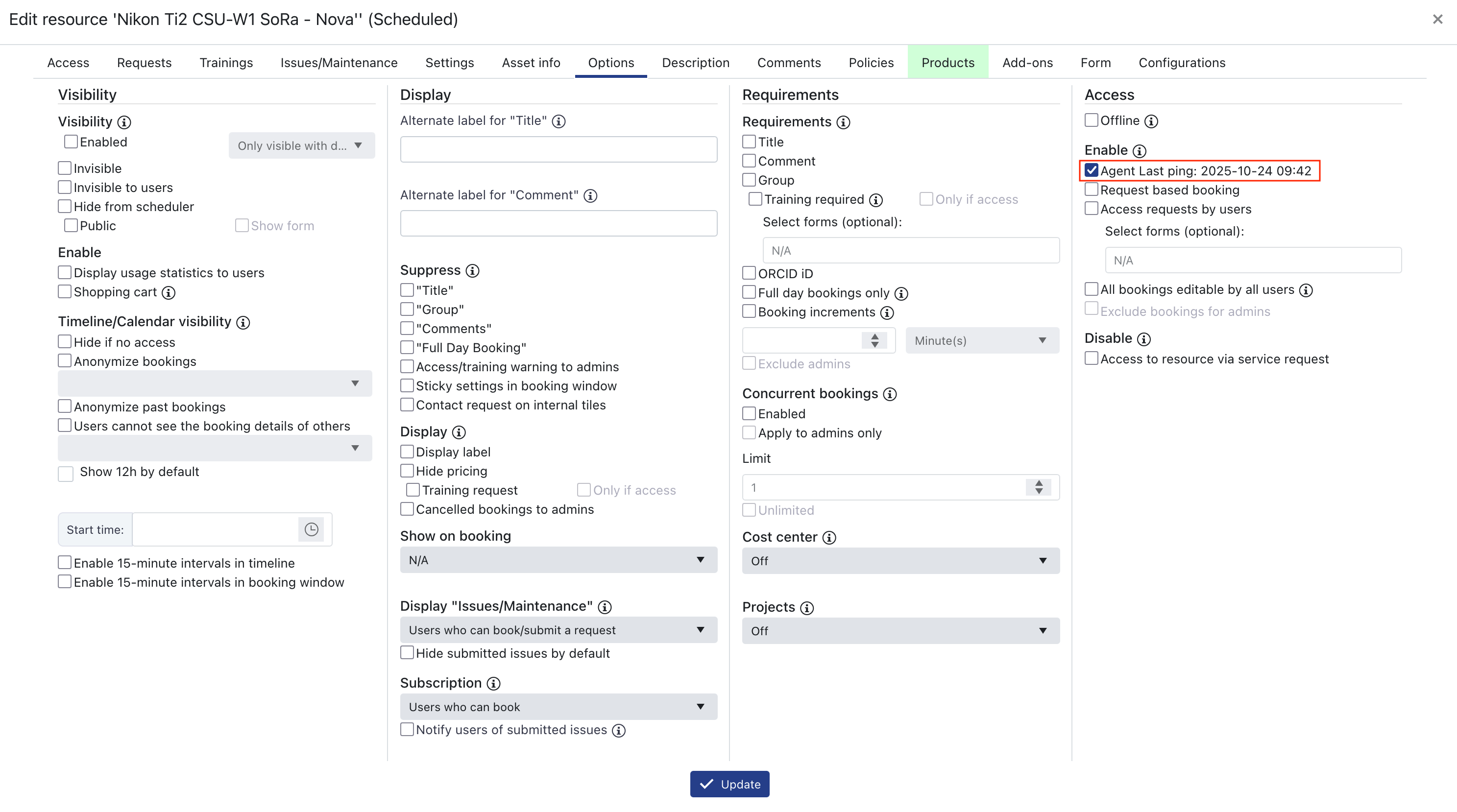
In Admin > Resources > List adjust the resources ([resource-entry] > Manage (gear icon)) that were added to the Agent settings policy (section above).
In the Resource go to the Options (tab) and tick the Access > Enable > Agent (tick box).
 |
|---|
Ensure to press the Update button after modifying the tab.
This allows you see active logons on the instrument; i.e., in a booking you can see when a user logged in and/or out at the instrument.