This page explains how to use the publication tracker in openiris.io – from collecting ORCID iDs to scanning, reviewing, assigning, and exporting publications. It provides step-by-step guidance for users, provider-admins, and organization-admins.
¶ Publication Tracker
The publication tracker links users’ publications to the provider, resource and services that supported the work. By drawing on validated ORCID data, it gives providers a transparent view of the scientific output generated with their resources.
Users can review and assign their publications, while admins can monitor, filter, and export data for reporting.
¶ Collect ORCID iDs
The publication tracker allows provider-admins to scan and import publications of their users based on their ORCID iDs (i.e., anyone who has booked a resource or requested a service and thus appears under Admin > Users
Only users with an ORCID iD stored in the system will be included in the scan
- Users can enter their ORCID iD in their profile.
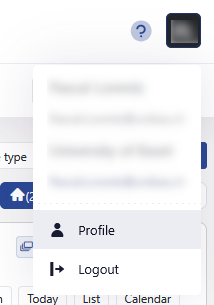
For this they need to click on their initials top right and then click on profile.
 |
|---|
| Profile |
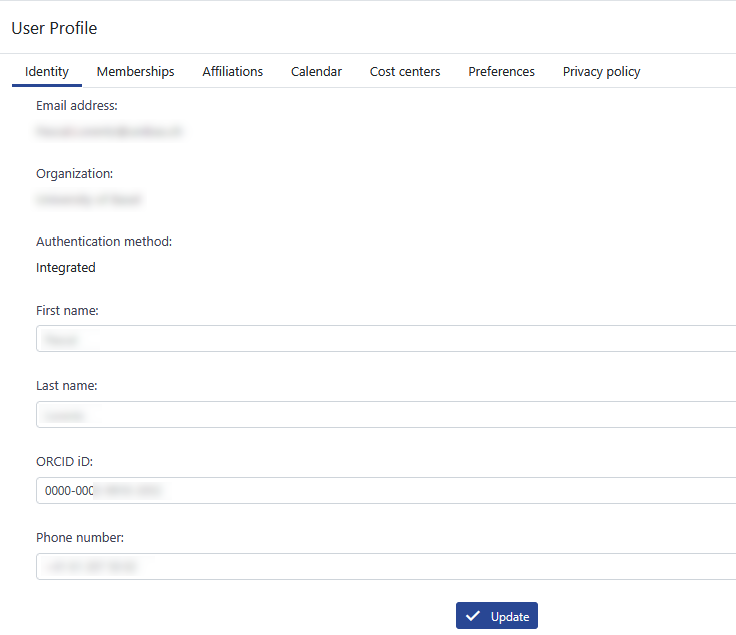
In the identity tab they need to add their ORCID iD.
 |
|---|
| ORCID iD |
- Organization-admins can add ORCID iDs to user profiles or import them in bulk.
This can be done inBrowse > Organization > Members - ORCID iDs can also be fetched automatically at login (contact us to enable this).
This requires that the organization provides ORCID iDs as part of the user attributes in their identity provider (e.g. Active Directory).
¶ Enforce ORCID iD
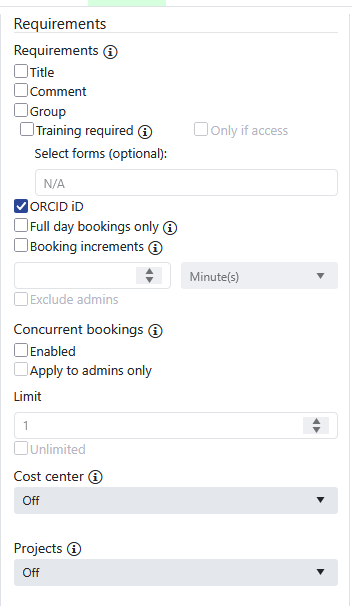
- Provider-admins can require an ORCID iD for booking a resource.
Admin > Resources > [Resource]> Optionsand tick the ORCID iD tickbox in the requirements column.
 |
|---|
| Enforce ORCID iD |
This needs to be done for all resources, that are used by users whose ORCID is interested.
- If enabled, only users with an ORCID iD can book.
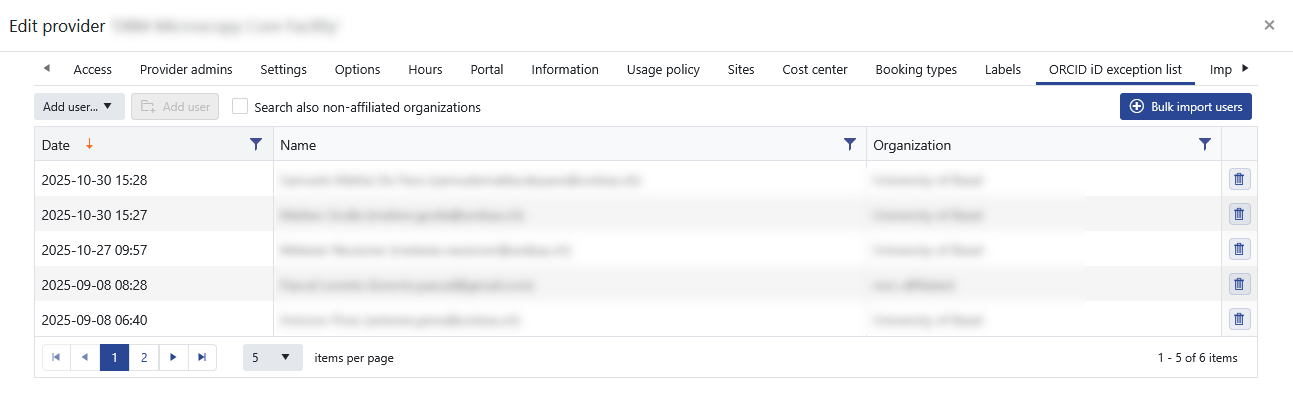
- Exceptions are handled on provider level and can be managed via the ORCID iD exception list in the provider settings.
 |
|---|
| Exception list |
ORCID iDs are displayed in various relevant places throughout the platform.
¶ Scanning & Publications
- Provider-admins can run scans (up to a maximum date back to 01.01.2023).
- Publications will be listed together with the account they were matched to.
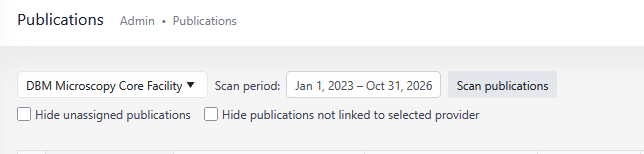
Go to Admin > Publications
Select the provider and a time range and click scan publications.
 |
|---|
| Select Provider |
openiris.io will import all publications of users of the selected provider with a valid ORCID iD.
As an admin you can assign publications to your provider by clicking on the edit icon.
 |
|---|
| Imported publication |
However this should idially be done by the user itself.
After a new import the users will receive a pop up which directs them to their publication list. The user is asked to assign the publication to the provider that have been involved (several can be selected).
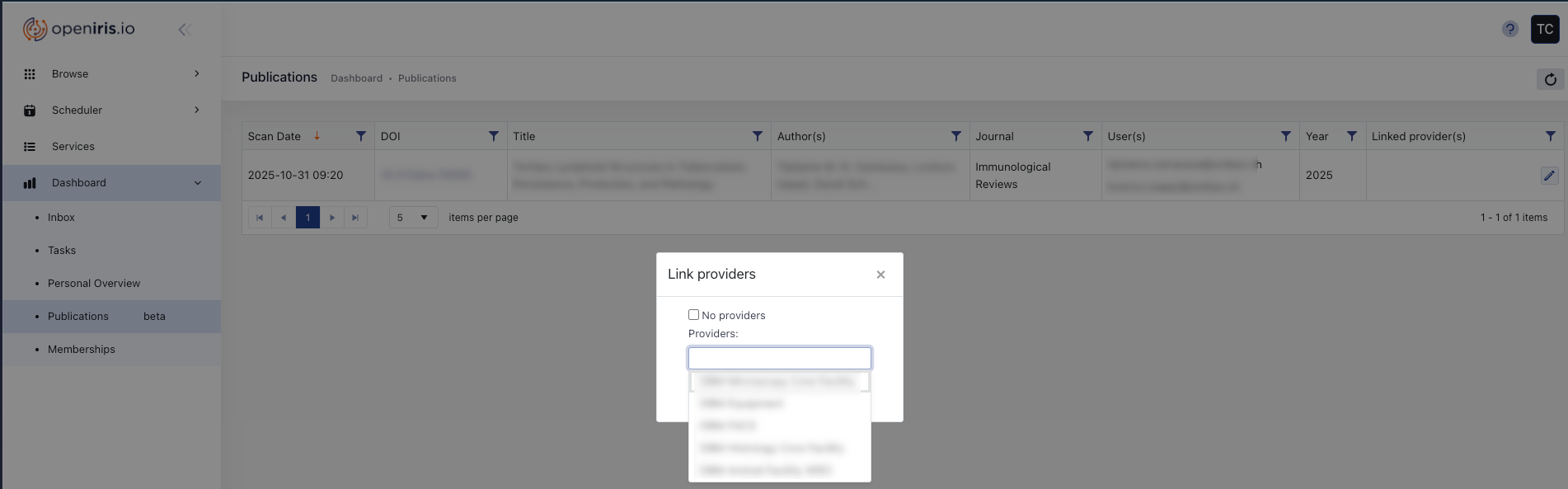 |
|---|
| Assign provider |
¶ Publication Settings
- Admins see all publications in
Admin > Publicationswith a column for linked providers. - Admins can:
- Filter the list to hide unassigned publications or those not linked to their providers.
 |
|---|
| Hide publications |
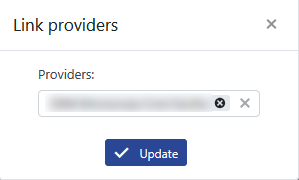
- Remove their own provider from a publication.
Click the edit tool at the selected publication and remove your provider from the list.
 |
|---|
| Remove publications |
¶ Exporting
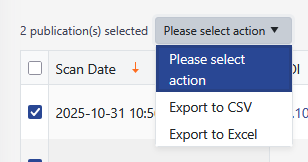
- Export a list of publications.
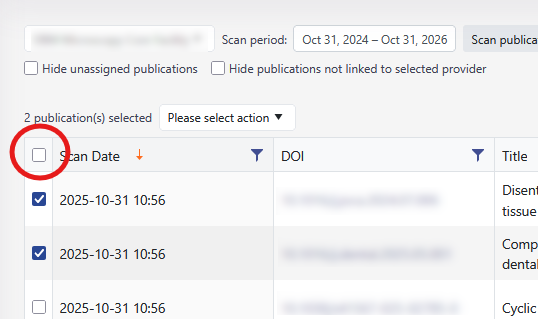
Select the publications you want to export or with the first checkbox select all of them.
Again you can apply filters to hide unassigned publications or publications that are not linked to the selected provider.
 |
|---|
|Select publications for export|
Once the publications are selected you can use the drop down to export either as a CSV or as an Excel file.
 |
|---|
| Export |