¶ Group management
This page explains how administrators can manage groups in openiris.io by adding or removing members or group admins and editing details such as name, contact, homepage or AD information. It also an overview to group bookings, requests and charges.
¶ Overview group settings
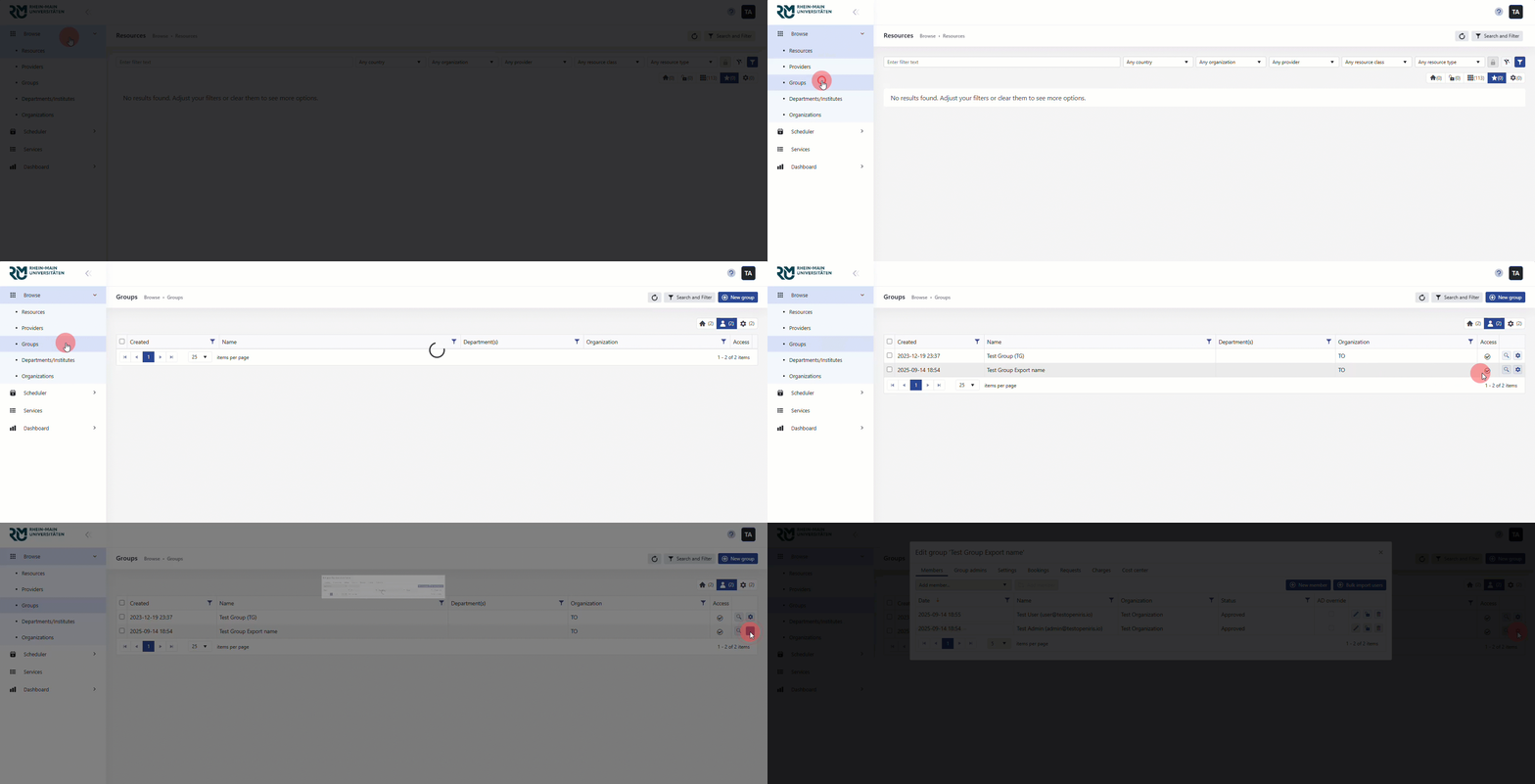
All groups can be found at Browse> Groups Every group you are an admin of has a little gear wheel symbol on the right. By clicking on it you can open a new window with the group settings. It contains the following sub-tabs:
- Members: Here all members of the group are listed. New members can be added, existing members can be edited or deleted.
- Group Admins: This tab lists all group admins. Again new ones can be added or existing ones can be removed.
- Settings: Here the general settings of the group can be edited and adjusted.
- Bookings: This tab lists all bookings by members of the group.
- Requests: This tab lists all requests made by a member of the group. The requests are listed independent of their current status.
- Charges: This tab contains all charges made by a member of the group. You can also get a monthly report of open charges.
- Cost center: In this tab all cost centers of the group are listed. A new cost center can be added when clicking on "Add cost center".
¶ Add a registered user
- Select the group to which you want to add the user (
Browse->Groups->manage (gear icon)->Members)
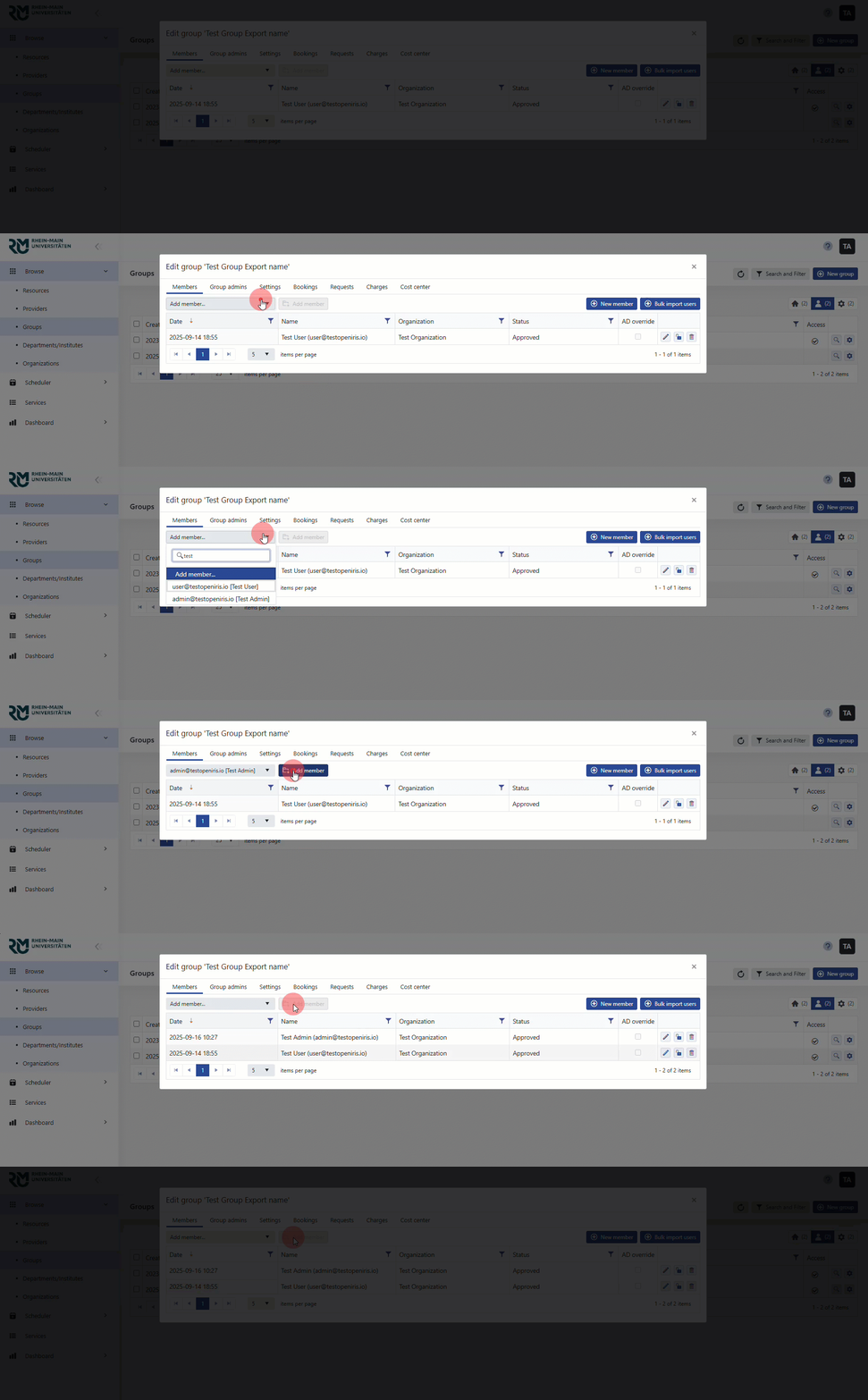
- use the
Add memberbutton, find the user and clickAdd member
¶ Add a new user
This method only applies if the person you want to add is not yet registered with openiris.io. If the useres is already registered in openiris.io see paragraph Add a registered user.
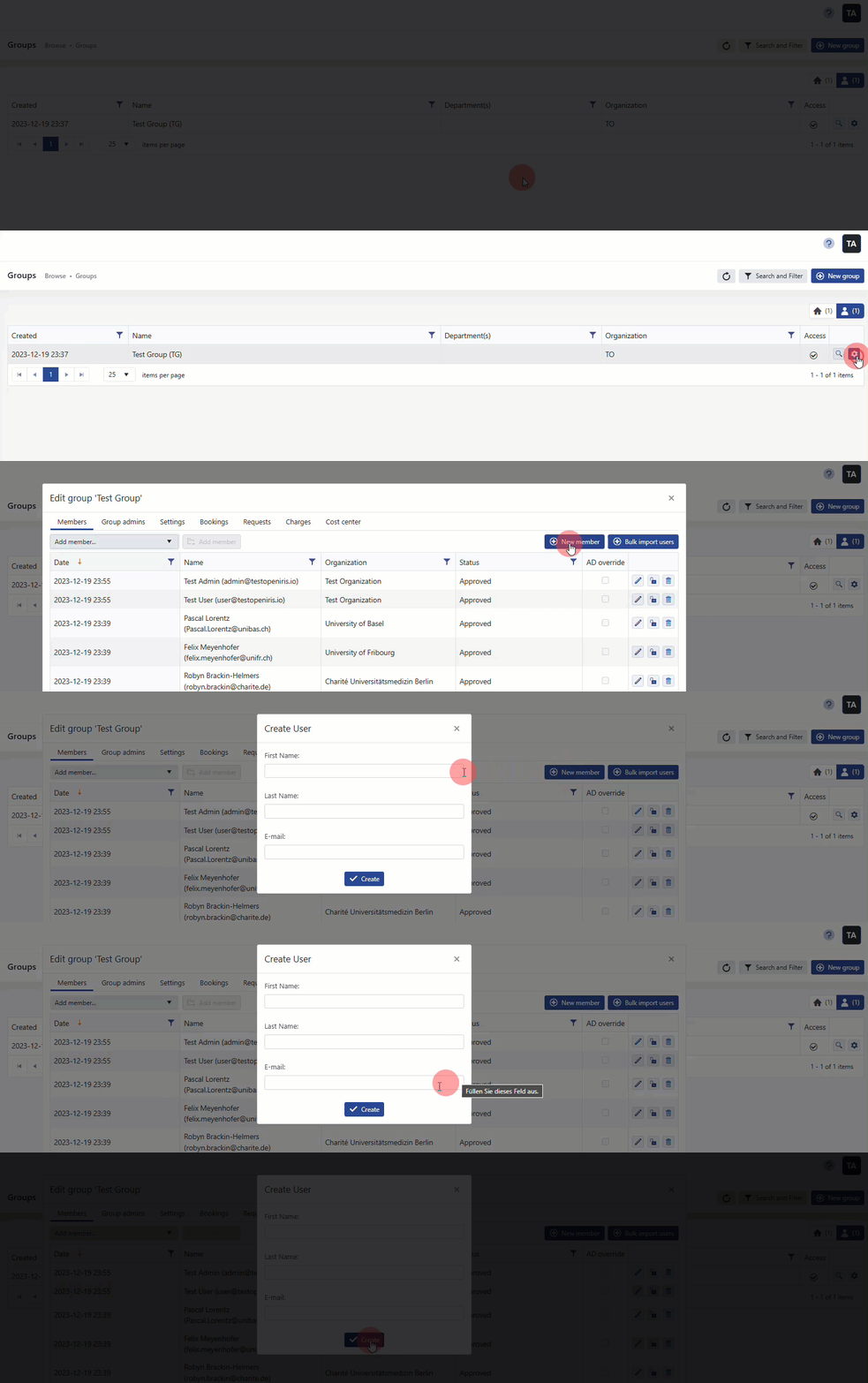
- Select the group to which you want to add the user (
Browse->Groups->manage (gear icon)->Members)- Select the
New memberbutton. - Add the "First Name" and "Last Name" and "E-mail" of the user
- Select the
¶ Add new members with an bulk import
-
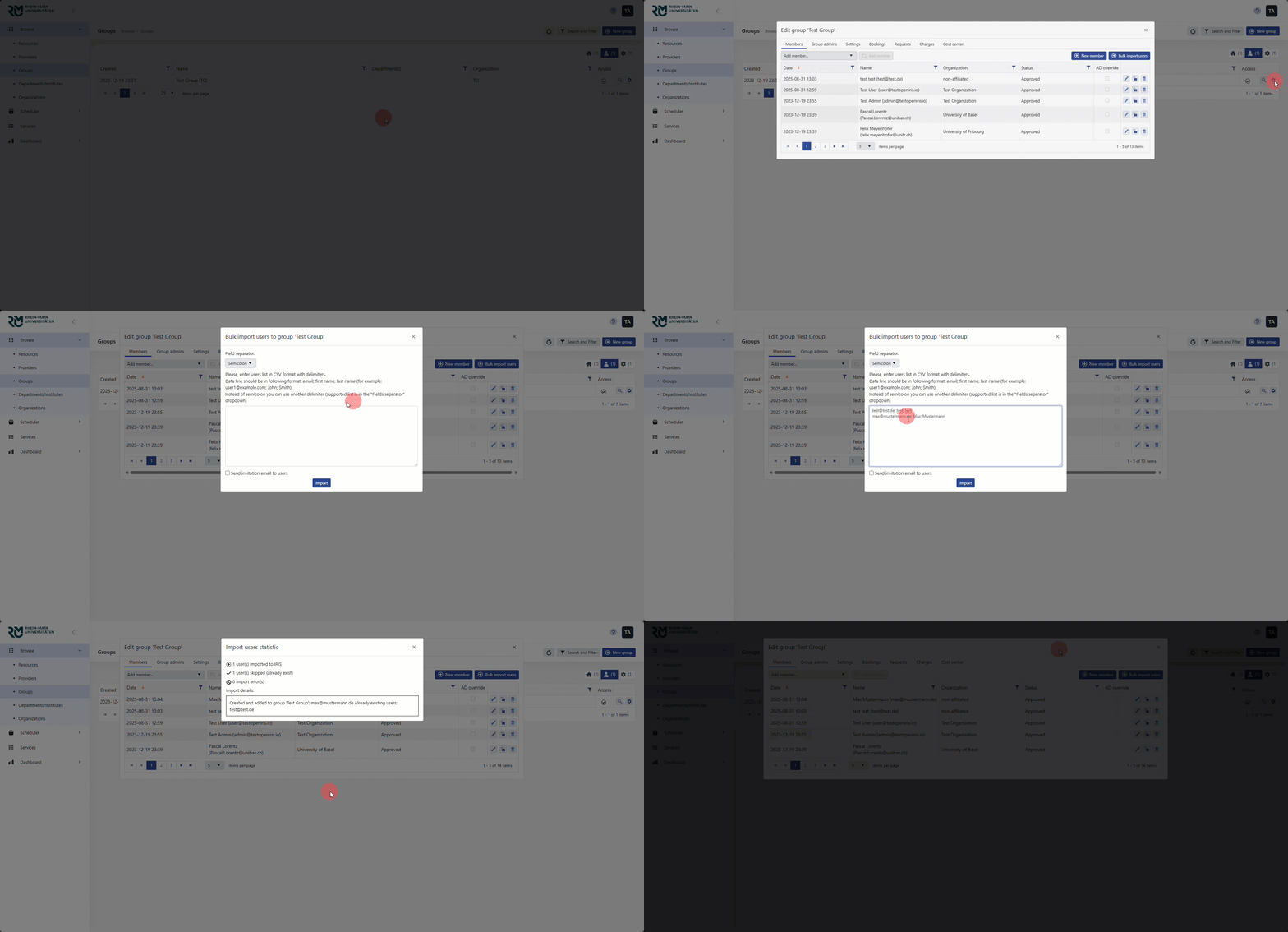
Select the group to which you want to add the users (
Browse->Groups->manage (gear icon)->Members)- Select the
Bulk Import Usersbutton. - Change the seperator to the one used in your list
- add the list of new members to the input field
- if wanted, turn the invitation e-mails on
- Select the
Please ensure the list is formatted as follows: test@mail.com;First_name;Last_name or
test@mail.com,First_name,Last_name
¶ Export of group members
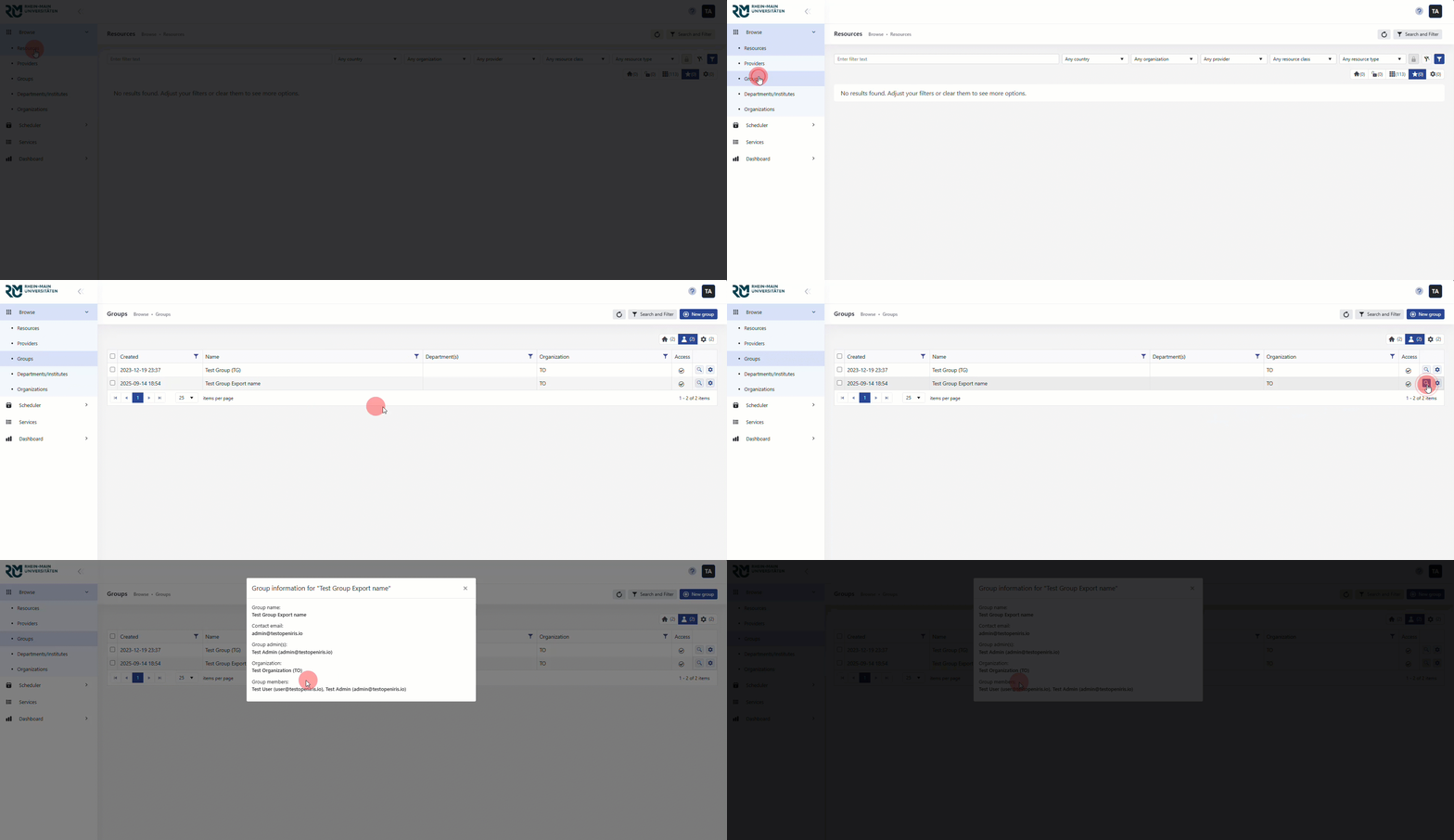
- It is not possible to export group members directly. If you want a list of group members, select the relevant
groupand press themagnifying glass.
(Browse->Groups->Magnifying glass) - Group members can be found under 'Group members'.
¶ Add group admins to a group
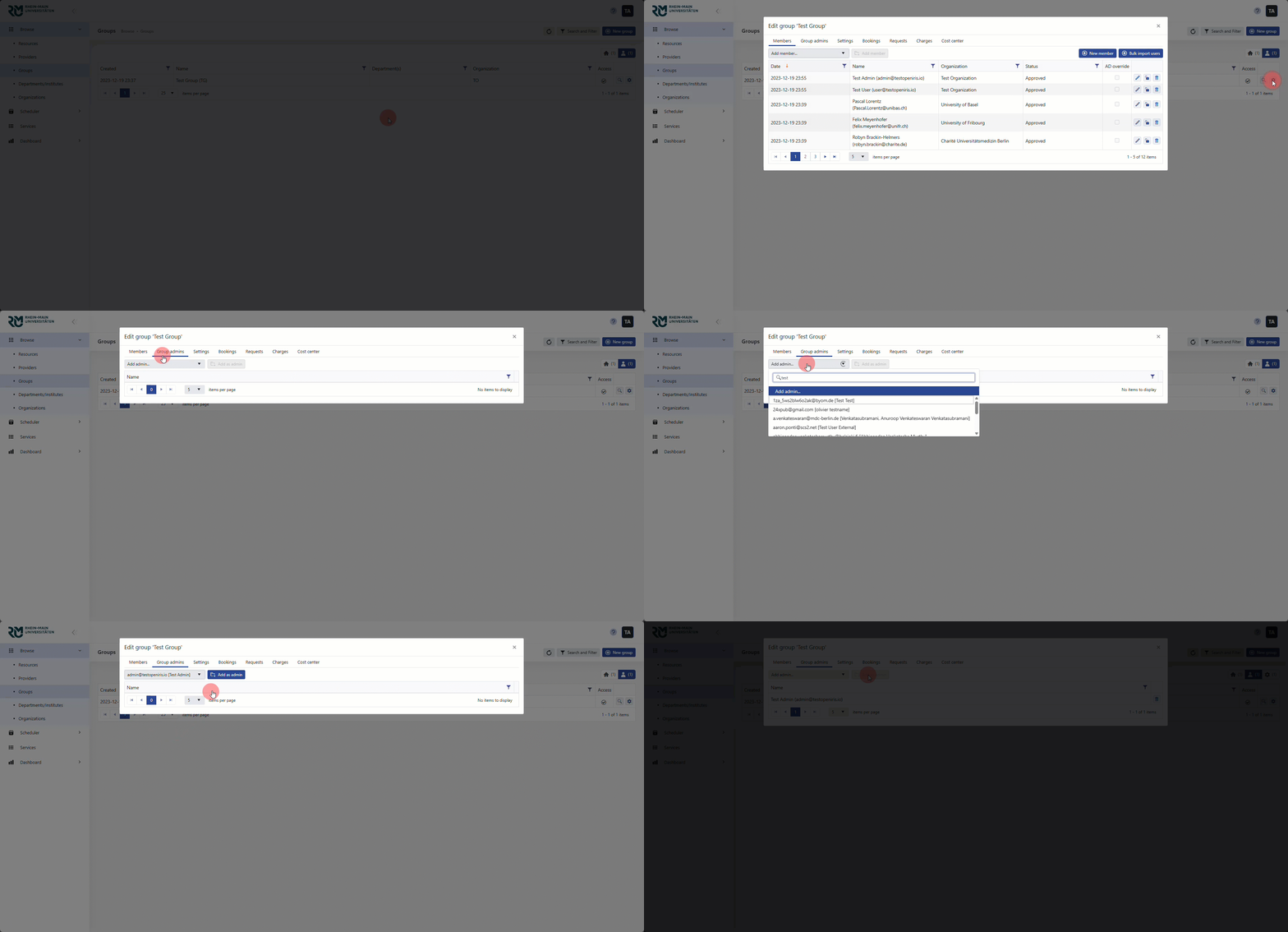
- Select the group to which you want to add the Admin (
Browse->Groups->manage (gear icon)->Group Admins)- Select
Add adminand type the User in you want to add as an Admin - confirm with the
Add as AdminButton
- Select
This method only applies if the person you want to add is registered with openiris.io.
¶ Remove members or group admins from a group
¶ Remove a member
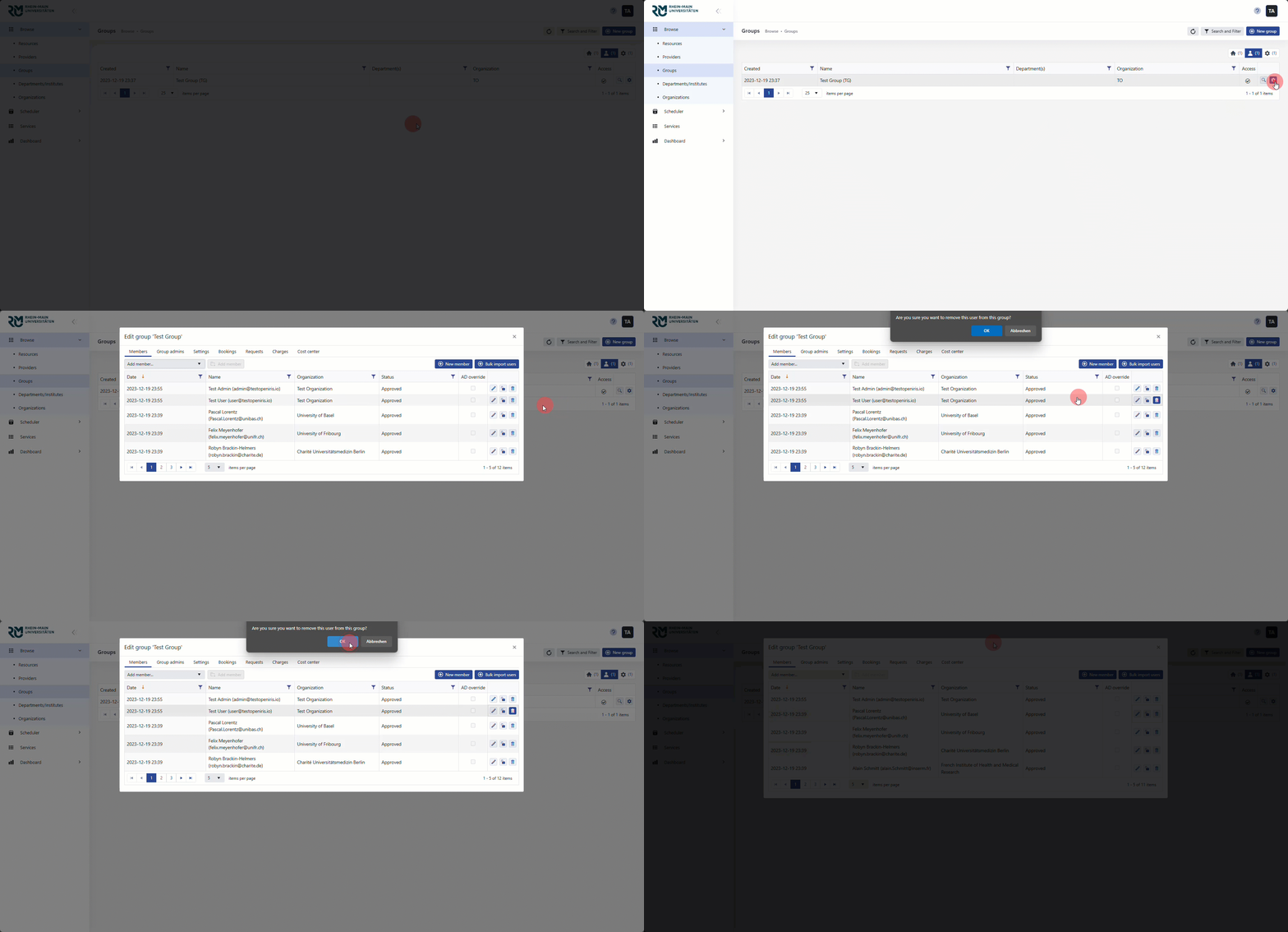
- Select the group to which you want to remove the user (
Browse->Groups->manage (gear icon)->Members)- Press the
RemoveButton and confirm
- Press the
Be aware that this only removes the user from the group and does not delete the user account.
¶ Remove an Admin
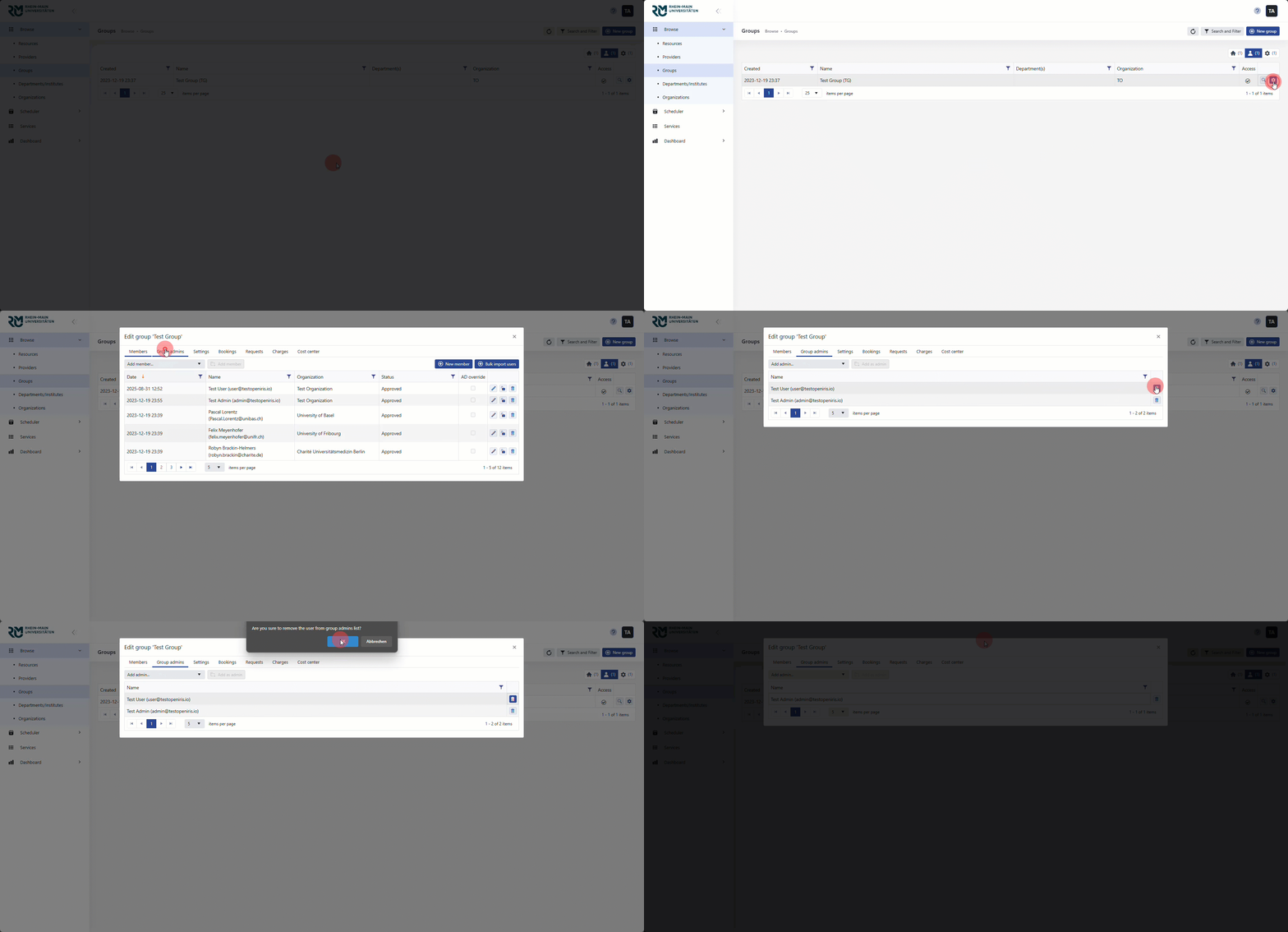
- Select the group to which you want to remove the Admin (
Browse->Groups->manage (gear icon)->Group Admins)- Press the
RemoveButton and confirm
- Press the
Be aware that this only removes the user as a group admin. It does not remove the user from the group nor deletes the user account.
¶ Change group settings
Select the group to which you want to adjust the settings (Browse -> Groups -> Gear wheel -> Settings)
- Here you can change the group name, short name and contact email
- You can add/change a group head, group orders list, group nickname, keywords, and and url
- You can add a group Head from IRIS. If
Show users from all organisationis marked, you can add from every organisation - You can change the group to inactive with the
Inactivecheckbox, allow users from other organisation with theAllow users from all organisationcheckbox and Auto approve group membership requests with theAuto approve group membership requestscheckbox
¶ Add or change cost center information
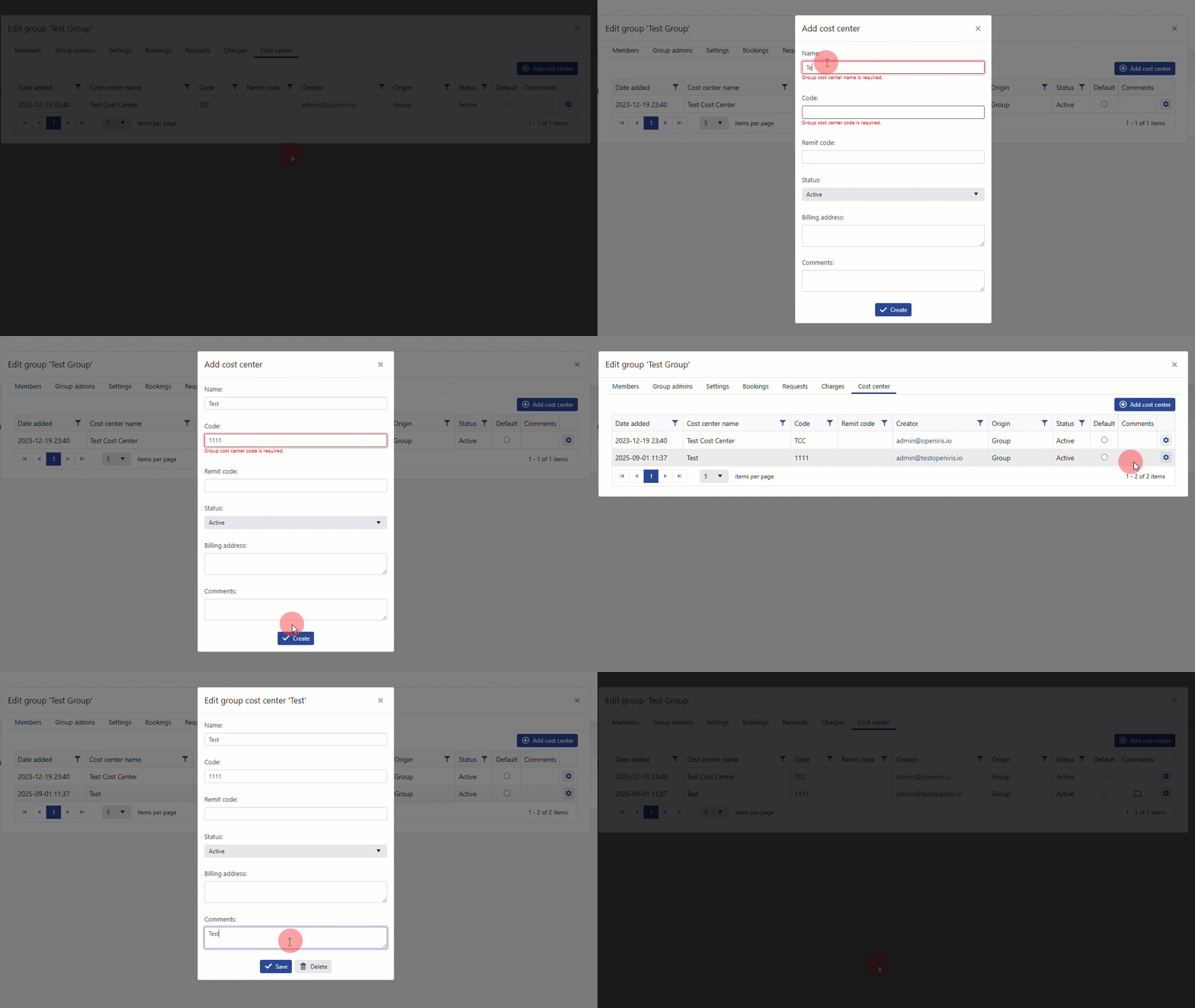
Select the group to which you want to add/change the cost center (Browse -> Groups -> manage (gear icon) -> Cost center)
- to add a cost center click
Add cost center- fill out the required fields, Name and Code
- if needed fill out the remit code, billing address and comments or change the Status
- press
Create
- to change a cost center, select the cost center you want to change and select the
manage (gear icon)- change the fields you want to change and press
Save!
- change the fields you want to change and press
¶ View bookings, requests, and charges
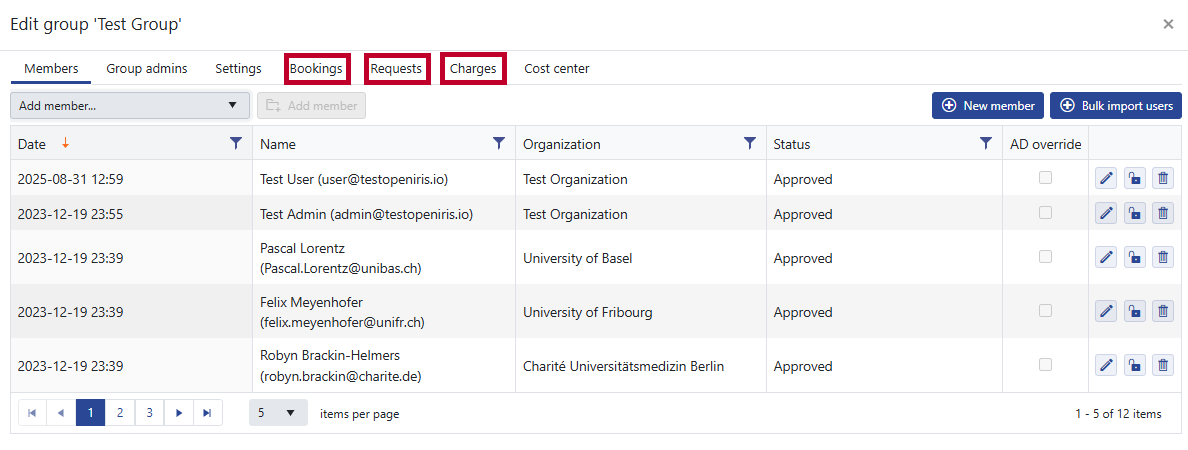
To view bookings of a group, go to
(Browse -> Groups -> Gear wheel -> Bookings)
To view requests of a group, go to
(Browse -> Groups -> Gear wheel -> Requests)
To view your charges of a group, go to
(Browse -> Groups -> Gear wheel -> charges)
- You can set it up so that a monthly report is sent or that it is sent directly by pressing
Send now.