The IRIS User Agent is a usage tracking agent that is a dedicated application designed to bridge the gap between scheduled bookings and physical equipment utilization. It serves two primary functions: verifying that the person at the machine has a valid booking and recording the exact duration of use. This eliminates errors and provides a definitive 'source of truth' for usage statistics and billing.
Only available for Windows instrument computers.
¶ IRIS User Agent Setup
Below are instructions on how to install the user agent and configure the settings of the user agent.
¶ Installation
- Find the latest
IRIS Agent executableversion according to the Release Notes.
Download the latest executable by adjusting the version number in the following download link (links to version 1.9.3.12):
https://iris-agent-installer.s3.eu-west-3.amazonaws.com/prod/X.X.X.X/IrisUserAgentSetup.exe - Follow the instructions in the executable.
Windows may try to protect your PC, pressMore info, then theRun anywaybutton. - After successful installation, the Iris Agent appears in the system tray and needs to be configured (see the Settings section).
¶ Settings (Configuration)
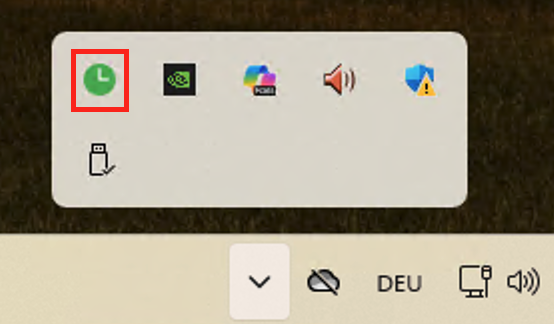
- Right-click the Agent icon and select
Adapt Settings.
 |
|---|
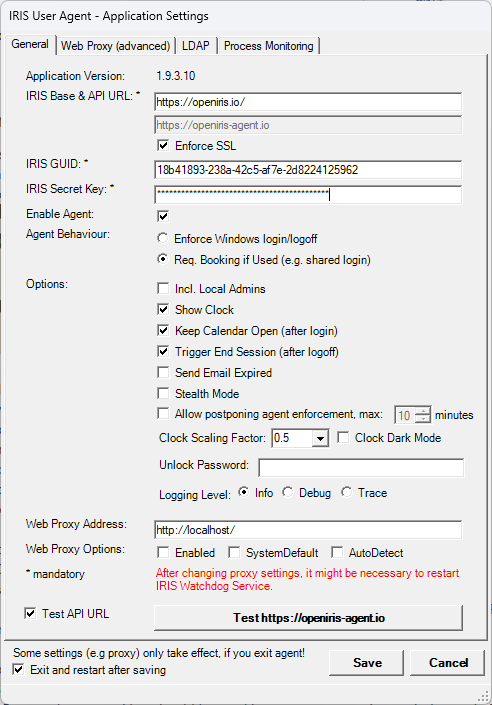
- Adapt the General Settings
 |
|---|
| Entry | Description |
|---|---|
| IRIS Base & API URL | Insert: https://openiris.io/ By default the API URL is set to https://openiris-agent.io (used for the communication between the agent and the central services from IRIS), but there are exceptions (see the INI file section). |
| Enforce SSL | should be ticked |
| IRIS GUID | Is found in IRIS Admin > Resources > List > [resource-entry] > Manage (gear icon) > Settings (tab) |
| IRIS Secret Key | Is found in IRIS Admin > Resources > List > [resource-entry] > Manage (gear icon) > Settings (tab) |
| Enable Agent | Tick the box to enable the agent on the PC |
| Agent Behaviour: Enforce Windows login/logoff | For domain Windows user login (old example video: https://youtu.be/BNtrWC2J6OQ) |
| Agent Behaviour: Req. Booking if Used | For PC usage with common/shared Windows login (old example video: https://youtu.be/ULsGv3fGBGc) |
| Options: Incl. Local Admins | Forces IRIS authentication also for Windows admin accounts. |
| Options: Show Clock | Shows the countdown clock to the user and allows them to end the session. |
| Options: Keep Calendar Open (after login) | Keeps the IRIS calendar window open after login to the agent. |
| Options: Trigger End Session (after logoff) | Ends the booking after logoff (or ending the session via the agent, or PC shutdown). |
| Options: Send Email Expired | Sends an email if a person's booking runs over the defined booking time (but the booking will continue to auto-extend until logoff). |
| Options: Stealth Mode | Operates in the background and is not enforced. |
| Options: Allow postponing agent enforcement | Define how long a user can postpone a booking when they log in (if not checked they cannot postpone). |
| Options: Clock Scaling Factor | Defines how large the clock appears on the screen. Make sure to choose a value from the drop-down menu. Clock Dark Mode option is available . |
| Options: Unlock Password | Allows the admins to change the agent settings (where users may have admin rights on the PC) |
| Options: Logging Level | Info: Normal level; Debug: More details; Trace: Even more details (should only be activated if necessary as the logs grow fast) |
| Web Proxy Address | Only required if your network is behind a proxy server (many are not, contact your IT if you are unsure). |
| Web Proxy Options | Enabled: enables the proxy option; SystemDefault: Uses the proxy configuration already defined in the operating system without additional discovery.; AutoDetect: Tries to find a proxy automatically on the network using WPAD (DHCP/DNS lookup). |
| Test API URL | Suggested to test the current settings (incl. the optional advanced web proxy settings) by clicking on the Test button and get confirmation of the connection before saving them. The test only succeeds if correct IRIS GUID & Secret Key for this resource have been provided. The checkbox enforces that the API is tested, which can be different to the Base URL (used in the embedded browser). |
| Exit and restart after saving | It is recommended to keep this checked (after you have configured all settings and click on the Save button)! |
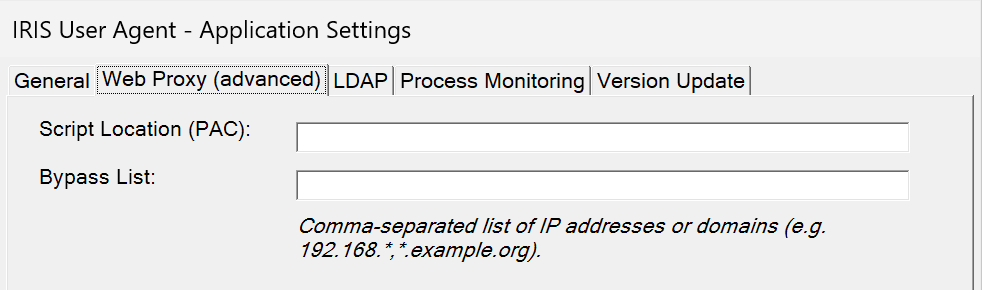
- Adapt the Web Proxy settings (if necessary)
These require precise web proxy settings. Please contact your IT Team if you do not know the web proxy settings for your organization.
| Entry | Description |
|---|---|
| Script Location (PAC) | Optional auto-config script that tells the client (agent and embedded browser) which proxy to use for each URL. |
| Bypass List | A list of hosts or address patterns that should be accessed directly instead of through the proxy. |
- Adapt the LDAP (if necessary)
These require precise LDAP settings. Please contact your IT Team if you do not know these settings for your organization.
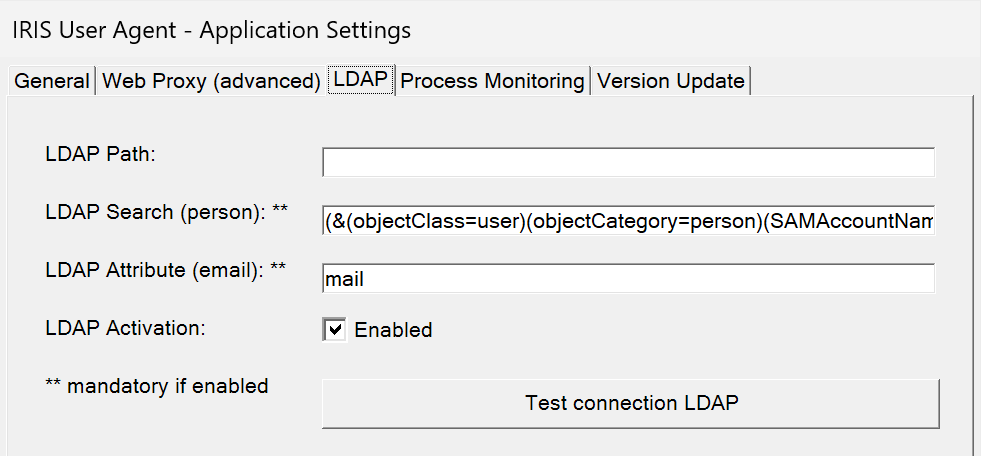
By enabling LDAP it allows to get the current Windows account for automatic authentication (SSO - Single Sign-On) without the Lock Screen with the embedded browser. This approach does not work when using a shared account on the instrument.
| Entry | Description |
|---|---|
| LDAP Path | Path for querying LDAP (search base). This setting is optional. When querying Active Directory, it can usually be left empty, in which case the domain root is used automatically. |
| LDAP Search (person) | It is automatically configured for SAMAccountName (in Active Directory). Usually it does not need to be adapted. |
| LDAP Attribute (email) | It is automatically configured for mail (in Active Directory), and is required to locate the matching user returned by the IRIS API for the current booking. |
For testing the LDAP connection a popup will be displayed allowing to test with specific credentials (not the current account).
Make sure to finally Save the settings!
¶ Updating
A Version Update notification will pop-up automatically when a new version is available.

This (time-limited) notification allows you to enter the Agent Settings to execute the update. Click yes to enter the Agent Settings.
In the Agent Settings navigate to the Version Update tab to Download and execute the update.
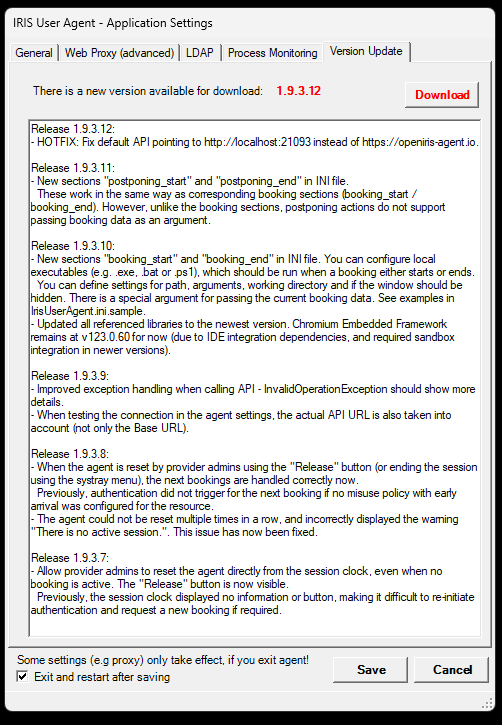
The download behaviour can be specifically configured in the INI File (see next section).
¶ INI File
With the INI File you can configure additional settings, which are not handled in the agent settings directly. It is especially useful for test environments, or custom in-house deployments, which don't follow the standard. It can also be configured for integrating external tools or scripts, e.g. for custom logic when a booking starts or ends.
You can find the IrisUserAgent.ini.sample template in the IRIS User Agent installation directory (usually: C:\Program Files (x86)\Iris\IrisUserAgent). As the files within this directory are write protected by default (without elevated privileges in Windows), it is a good idea to copy it e.g. to the personal Documents folder. There it can be renamed to IrisUserAgent.ini, and the final version copied back into the IRIS User Agent installation directory.
The initial content of the template (.sample file):
[iris]
; Allows to configure an own list of domains, which are excluded from using the default API https://openiris-agent.io, e.g. for TEST environments or own installations.
; It only takes effect when resetting the IRIS Base Url in the agent settings, and saving them.
;ApiUrlExcludedDomains = localhost,iris-test.codefirst.net,iris-feature-test.codefirst.net

[download]
;skip = on
;adminsonly = on
;testversion = on

[booking_start]
; The token "{{booking.json}}" allows to pass serialized booking record (not supported in postponing events)
;path = c:\tools\booking_start.exe
;arguments = -payload "{{booking.json}}"
;workingdir = c:\tools
;hidewindow = on

[booking_end]
;path = cmd.exe
;arguments = c:\tools\booking_end.exe
;workingdir = c:\tools
;hidewindow = on

[postponing_start]
; In this example you can see how to execute batch scripts
;path = cmd.exe
;arguments = /C "c:\tools\postponing_start.bat"
;workingdir = c:\tools
;hidewindow = on

[postponing_end]
;path = cmd.exe
;arguments = /C "c:\tools\postponing_end.bat"
;workingdir = c:\tools
;hidewindow = on
Lines with a leading semicolon ( ; ) are commented out and therefore not executed.
- [iris]
- ApiUrlExcludedDomains:
The default API https://openiris-agent.io is important in the production environment because the agent communicates with IRIS continuously and sends many requests to this endpoint. As the number of agents increased, traffic was offloaded from the official IRIS portal for scalability and security reasons.
However, for other environments, e.g. test or staging, the requests must be routed correctly. This setting allows to exclude these specific domains - for them the same domains are used as for the IRIS Base URL. The default test environment on iris-test.codefirst.net is already handled correcty by default (and does not need any exclusion).
- ApiUrlExcludedDomains:
The changes on ApiUrlExcludedDomains will only take effect after resetting the IRIS Base URL in the Agent Settings and saving them!
- [download]
- skip:
The setting on skips download check completely. - adminsonly:
At startup only local admins will be notified about newer versions. - testversion:
There is a separate check & download location for new test versions.
- skip:
- [booking_start/end] & [postponing_start/end]
- The agent allows execution of custom scripts (e.g. .bat or .ps1) or programs (e.g. .exe) on certain events: e.g. on booking start/end, or postponing start/end.
To the booking events you can also provide the special token{{booking.json}}- it is a JSON-string with the current booking details.
- The agent allows execution of custom scripts (e.g. .bat or .ps1) or programs (e.g. .exe) on certain events: e.g. on booking start/end, or postponing start/end.
Example for the execution of a Powershell script (.ps1):
[booking_end]
path = powershell.exe
arguments = -File "c:\test_iris\test.ps1"
workingdir = c:\test_iris
hidewindow = on